
Archive, delete and forget
Hoku has three ways to clear things away. None of them ever touches Claude Code, Codex or Claude Desktop. They only change Hoku’s own index.
| What it does | Undo | |
|---|---|---|
| Archive a project | Takes the project off the Galaxy and keeps everything: sessions, folder, position | Restore, any time |
| Delete a project | Removes the project. Its sessions move to Unsorted. | Recreate the project |
| Forget a session | Removes one session from Hoku, with its note, links and activity | Add it again, or wait for new activity |
Archive a project
Section titled “Archive a project”Use it for work that’s finished or paused, but that you want to keep.
- How: the Archive icon on the project’s row in the Projects drawer, or Archive in its edit sheet. Hoku confirms with an Undo.
- What changes: the project leaves the Galaxy. Its sessions aren’t drawn, and they don’t spill into Unsorted.
- What stays: its sessions, root folder and place on the map. Its sessions are still in Sessions, ⌘K, Activity and Needs You, marked (archived). New sessions in its folder still join it.
- Restore: Projects → Archived → Restore, or Restore in its edit sheet. It comes back exactly where it was.
Delete a project
Section titled “Delete a project”In the project’s edit sheet, click Delete…. The button then says how many sessions will move, for example Delete · 4 sessions move to Unsorted. Click it to confirm.
The project is removed, and its sessions go to Unsorted, where you can reassign them. Recap outcomes tied to it are kept, without a project. Prefer Archive unless you really want the project gone.
Forget a session
Section titled “Forget a session”Forgetting removes a session you don’t want in Hoku any more, such as an experiment or a duplicate. The session itself stays in its provider app, untouched.
- Open the session’s inspector and click Forget at the bottom.
- Hoku asks Forget this session in Hoku? and says what will happen, for example: “Removes it from Hoku, with its note, links and activity. Claude Code’s copy isn’t touched. Scans leave it out until it has new activity in Claude Code.”
- If the session has a note and belongs to a project, you can keep the note (see below).
- Click Forget, or Cancel. Esc also cancels.
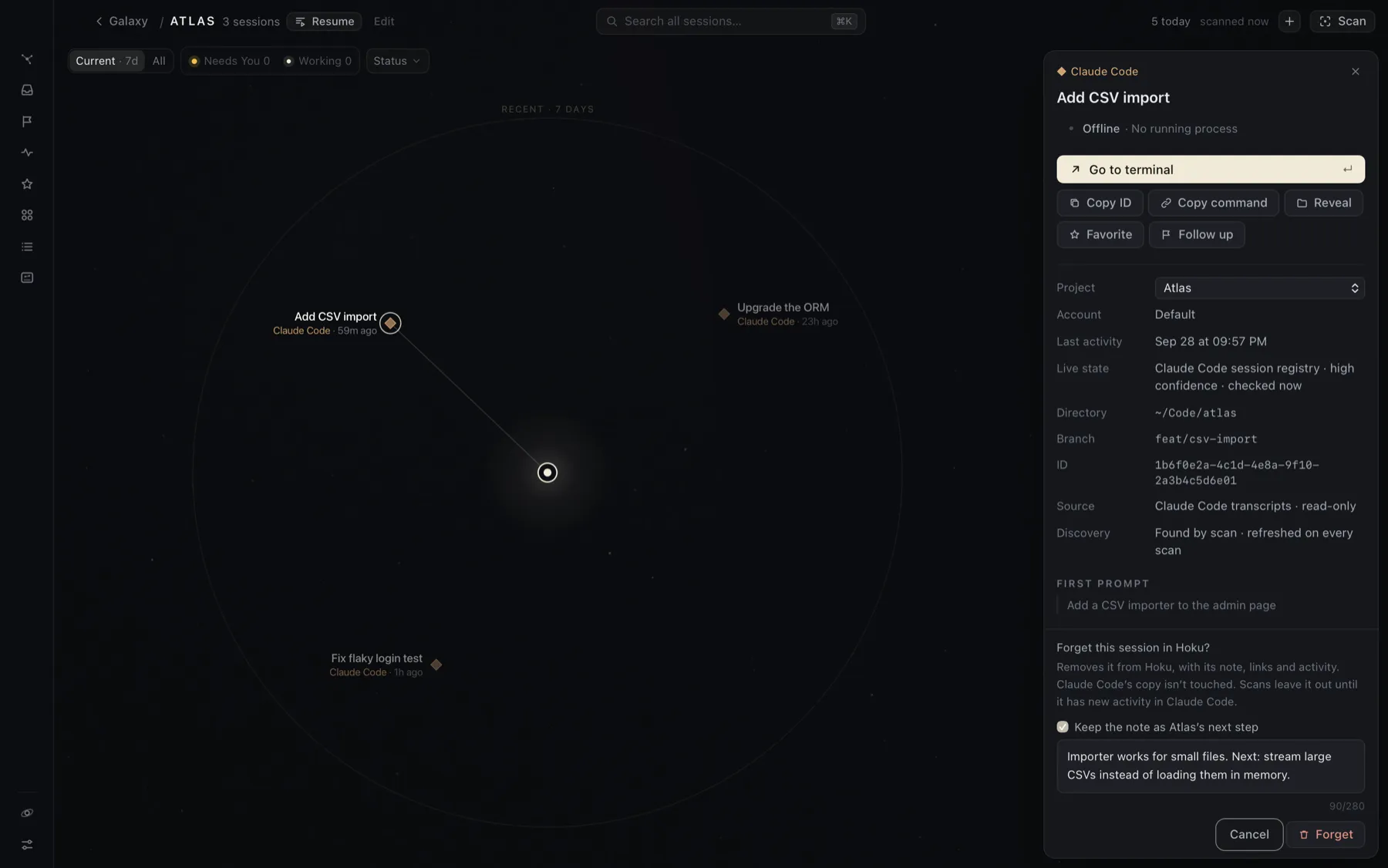
What forgetting removes
Section titled “What forgetting removes”The session’s record in Hoku, with your title, note, favorite, follow-up, links to related sessions and its activity history. Nothing in ~/.claude, ~/.codex or Claude Desktop is changed or deleted.
Keep the note as the project’s next step
Section titled “Keep the note as the project’s next step”A note is the one thing you’d lose that you wrote yourself. So when the session has a note and is in a project, the confirmation offers to save it as that project’s Next step in Resume:
- If the project has no next step yet, Keep the note as <project>’s next step is ticked for you.
- If the project already has one, the option reads Replace <project>’s next step with the note, shows the current text, and starts unticked.
- You can edit the text first. It must fit in 280 characters.
The next step is saved first. If saving it fails, nothing is forgotten.
Will it come back?
Section titled “Will it come back?”- Claude Code, Codex and Cowork sessions stay out of scans until they have new activity in their provider, meaning activity later than both what Hoku last saw and the moment you forgot it. If you keep working in that session, the next scan brings it back as a fresh entry, without its old note. If the provider shows no new activity, or its timestamp is missing, the session stays forgotten. This applies even if you first added the session by hand.
- Adding it again by hand (Add session) brings it back right away, and scans stop leaving it out.
- Claude chats and demo sessions never come back on their own, because no scan can find them.
Hoku remembers only the provider, the session’s ID and two timestamps for each forgotten session. It doesn’t keep the title or any text.