
Recaps
A recap summarizes a period of work: the activity Hoku observed on this Mac, next to the outcomes you write yourself. You can share it as an image or as text. It’s built to be honest: everything on it is either observed or written by you, and it says which.
Open it: Recaps in the rail, or Show Recaps in ⌘K.
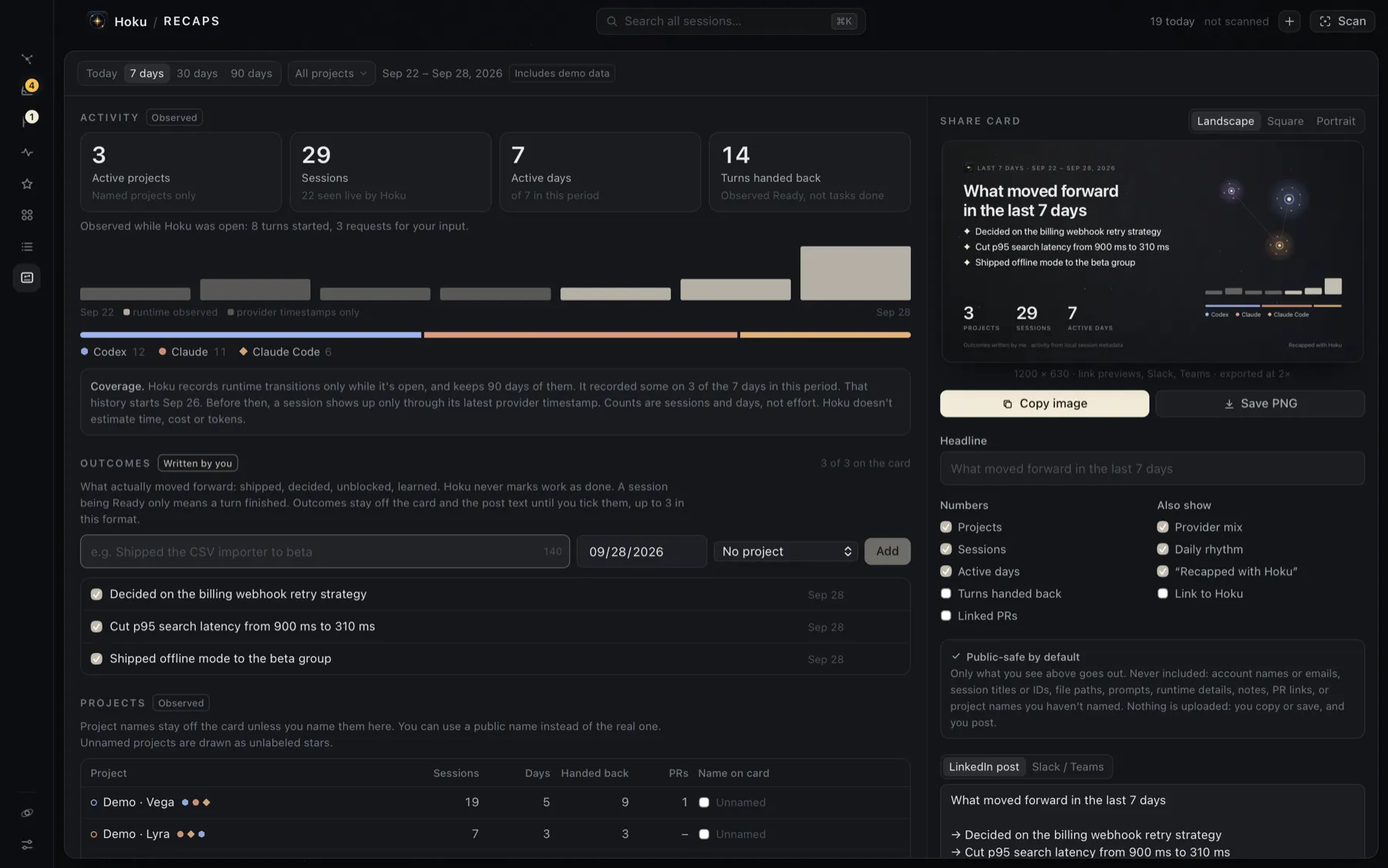
Choose the period
Section titled “Choose the period”Pick Today, 7 days, 30 days or 90 days (always ending now), and optionally some projects. Demo data is labeled Includes demo data.
What’s in a recap
Section titled “What’s in a recap”| Part | Where it comes from |
|---|---|
| Active projects, Sessions, Active days | Provider timestamps, plus the state changes Hoku recorded |
| Daily activity | Sessions per day. Bright bars are days Hoku recorded state changes. Dim bars come from provider timestamps only. |
| Provider mix | Sessions per provider |
| Turns handed back, turns started, requests for your input | State changes recorded while Hoku was open |
| Linked pull requests | Pull request links that Claude Code records. Hoku doesn’t know whether a PR was merged. |
| Outcomes | Written by you |
Coverage. Hoku records state changes only while it’s open, and keeps 90 days of them. Every recap says how many days in the period have that history and where it starts. Before that, a session shows up only through its latest provider timestamp.
What a recap never claims
Section titled “What a recap never claims”- Ready isn’t done. “Turns handed back” counts turns that finished, not tasks completed. It’s off on the card by default. Only your outcomes say that something moved forward.
- No cost, hours saved, productivity scores, completion rates or token totals.
- A session that changed state a hundred times counts once, so churn can’t inflate the numbers.
Outcomes
Section titled “Outcomes”Outcomes are one-line milestones you write, such as “Shipped offline mode to the beta group”. Each is up to 140 characters, with a date and optionally a project. Type one and click Add. From Linked pull requests you can start an outcome with “Pull request #42: “ and finish it in your own words.
Nothing goes on the card or into the text until you tick it. Hoku never ticks an outcome for you, and changing the period or projects clears your selection. A card holds up to 3 ticked outcomes (landscape), 4 (square) or 5 (portrait).
Share it
Section titled “Share it”The Share card preview is exactly what you’ll share.
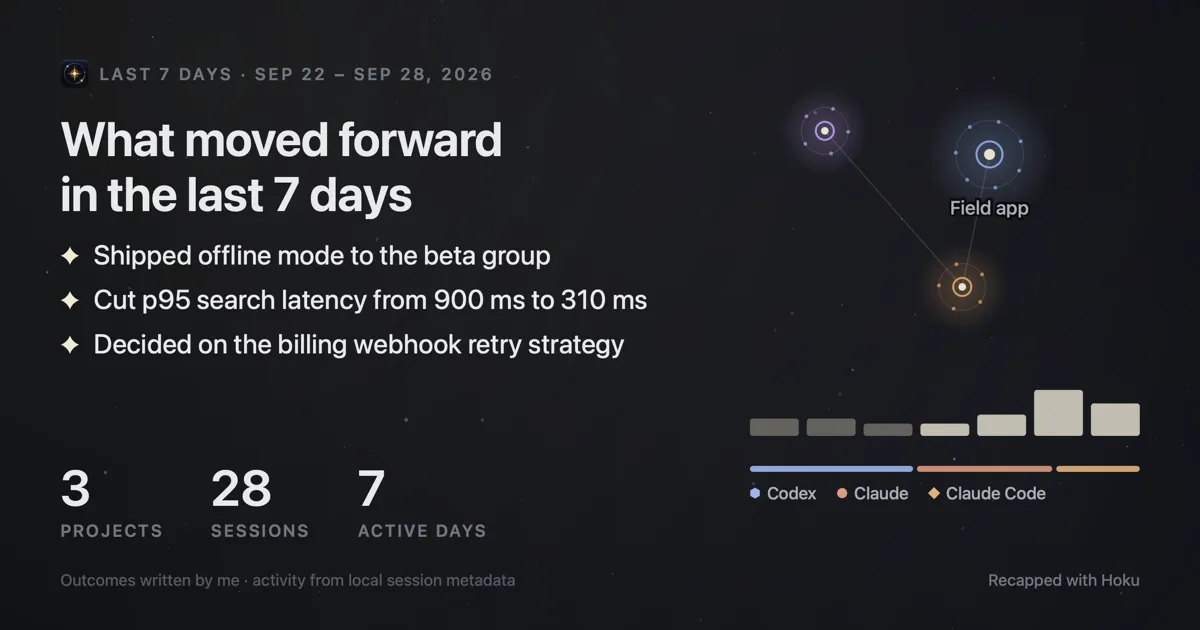
- Format: Landscape (1200 × 630, for link previews, Slack and Teams), Square (1080 × 1080, the LinkedIn feed) or Portrait (1080 × 1350, LinkedIn on mobile). Images are exported at twice that size.
- Headline, Numbers and Also show choose what’s on the card.
- Copy image puts a PNG on your clipboard. Save PNG saves
Hoku recap YYYY-MM-DD.pngto your Downloads folder, never overwriting a file, and offers Show in Finder. - LinkedIn post or Slack / Teams gives you text built from the same content. Edit it, then copy it.
Here is a landscape card exported with three outcomes:
Public-safe by default
Section titled “Public-safe by default”The card and text contain only the recap’s totals and the outcomes you ticked. They never include account names or emails, session titles or IDs, file paths, prompts, runtime details, notes or PR links.
A project’s name appears only if you tick Name on card for it. You can type a public name to show instead of the real one. Unsorted is never named. The small “Recapped with Hoku” line can be turned off, and a link to Hoku is off unless you add it.
Nothing is uploaded or posted. You copy or save, and you post.