
A tour of Hoku
Hoku organizes your work as projects → sessions. A session is one conversation in one tool: a Claude Code terminal session, a Codex thread, a Claude Desktop Cowork session or chat. A project is a group of sessions, usually one code repository or folder.
The window
Section titled “The window”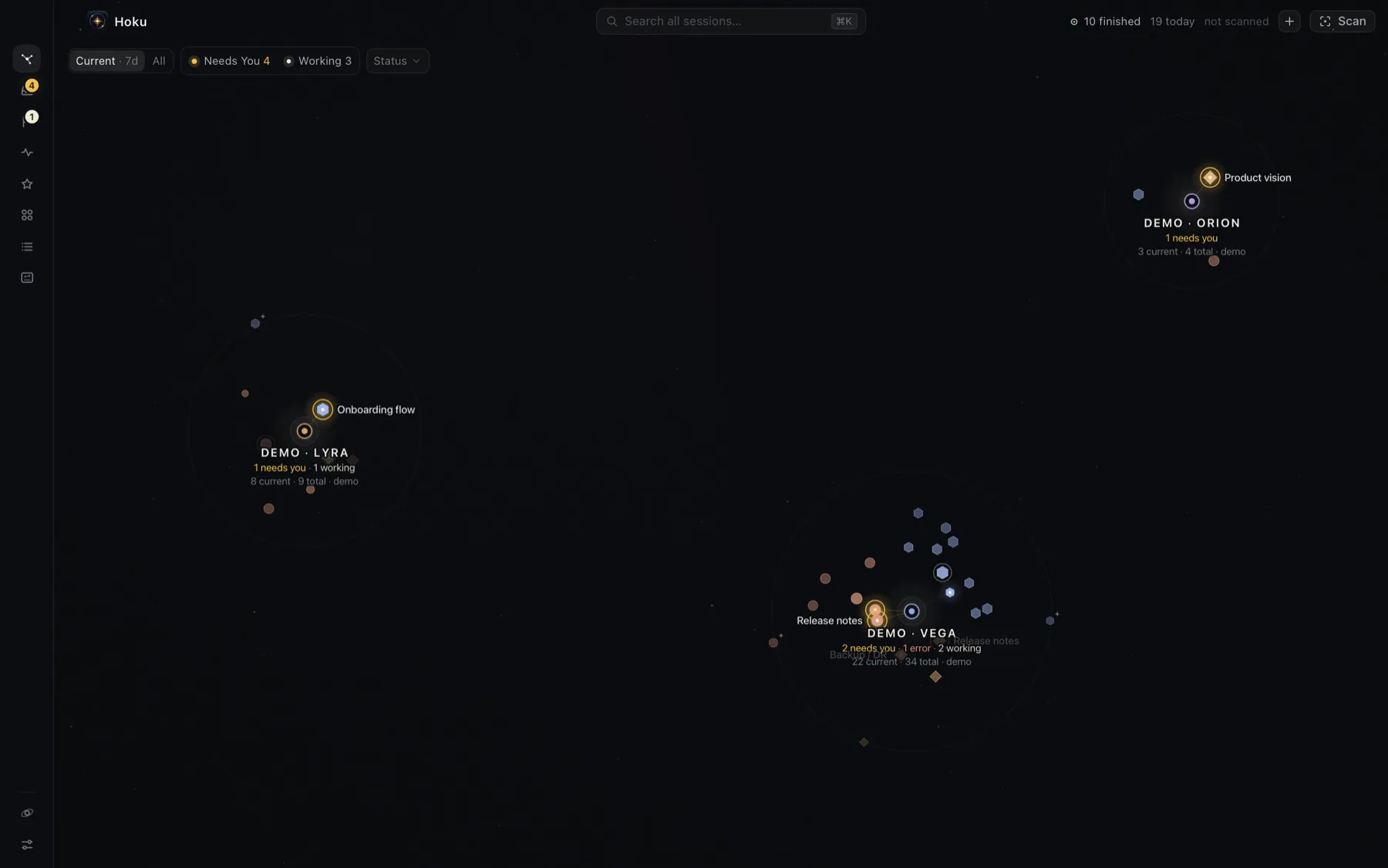
The rail (left)
Section titled “The rail (left)”From top to bottom:
| Icon | Opens |
|---|---|
| Galaxy | The map of all your projects. |
| Needs You | Sessions waiting for your permission, answer or sign-in. The amber badge counts them. See Needs You. |
| Follow up | Your own review-later list. The badge counts reminders that are due. See Follow up. |
| Activity | A timeline of what started, finished, needed you or failed. See Activity. |
| Favorites | Sessions you starred to keep handy, however old. Unlike Follow up, there’s nothing to finish. |
| Projects | Every project with a short status summary, plus archived projects. |
| Sessions | A sortable, filterable table of every session. |
| Recaps | A shareable summary of a period of work. See Recaps. |
| Integrations (bottom) | Which provider apps and command-line tools are installed, sign-in status, and what each source supports. |
| Settings (bottom) | See Settings. |
Needs You, Follow up, Activity, Favorites and Projects open as a drawer beside the map, so you can keep browsing.
The top bar
Section titled “The top bar”- Search all sessions… or ⌘K: find any session, project or action. See Search with ⌘K.
- N finished: sessions that finished a turn since you last looked at Activity.
- N today · scanned …: sessions active today and when Hoku last scanned. Click it to open Integrations.
- + (⌘N): add a session by hand.
- Scan (⌘⇧S): look for new sessions.
Galaxy, project and inspector
Section titled “Galaxy, project and inspector”There are three levels, and Esc always goes back one:
- The Galaxy shows every project as a star system, with its sessions orbiting it. See The Galaxy.
- A project: click a project to zoom in. Its sessions spread out and get labels. Clicking the project’s core also opens its Resume, where you can start a new Claude Code session. The top bar shows the project’s name, a status summary, Resume and Edit.
- The inspector: click a session to open its details on the right, with the button that takes you back to it. See Sessions and the inspector.
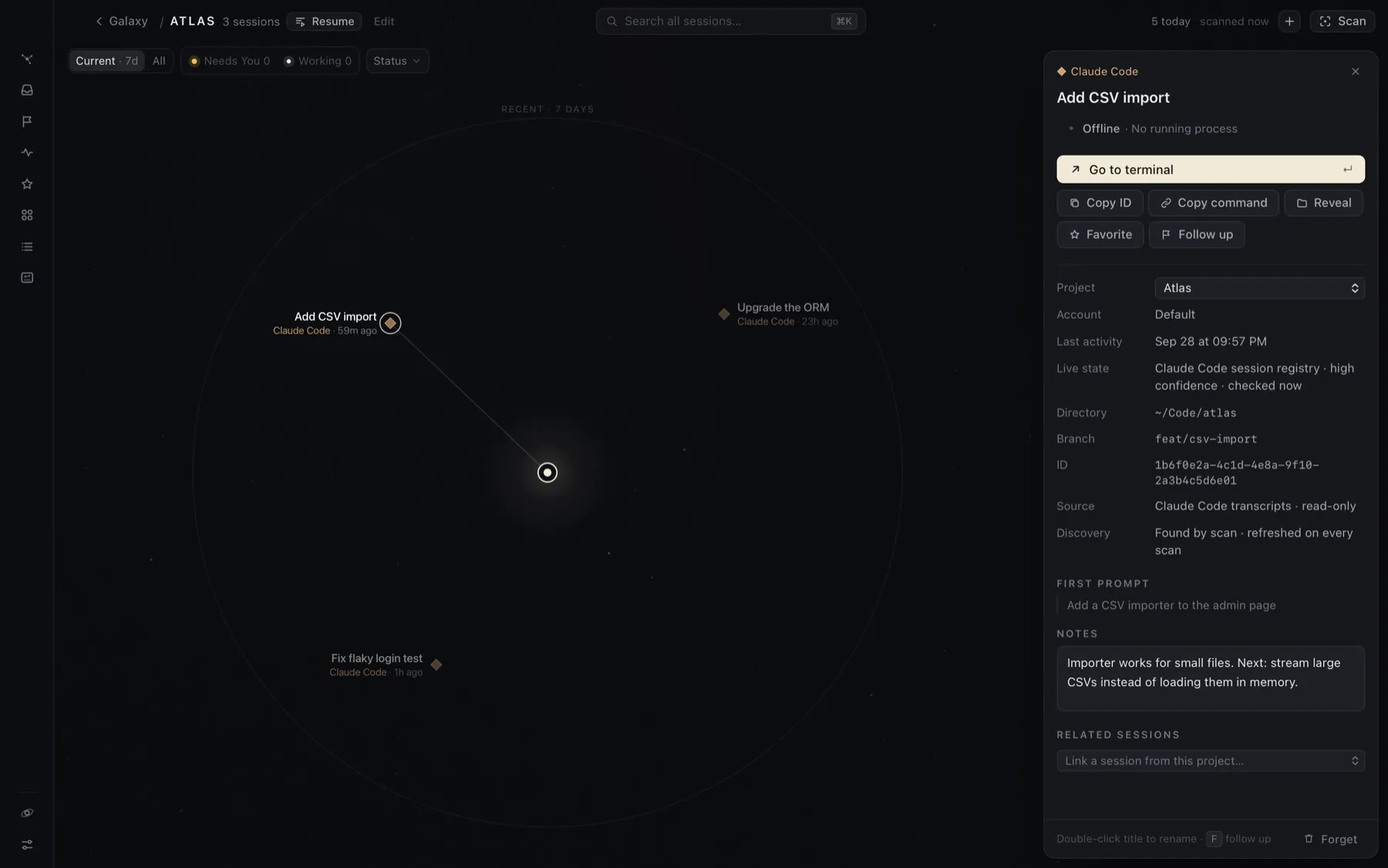
Double-click a session anywhere (on the map, in a drawer, in a list) to open it directly in its own app.
Where to go next
Section titled “Where to go next”- Learn what the halos and rings mean in Needs You and live status.
- See every key in Keyboard shortcuts.