
The Galaxy
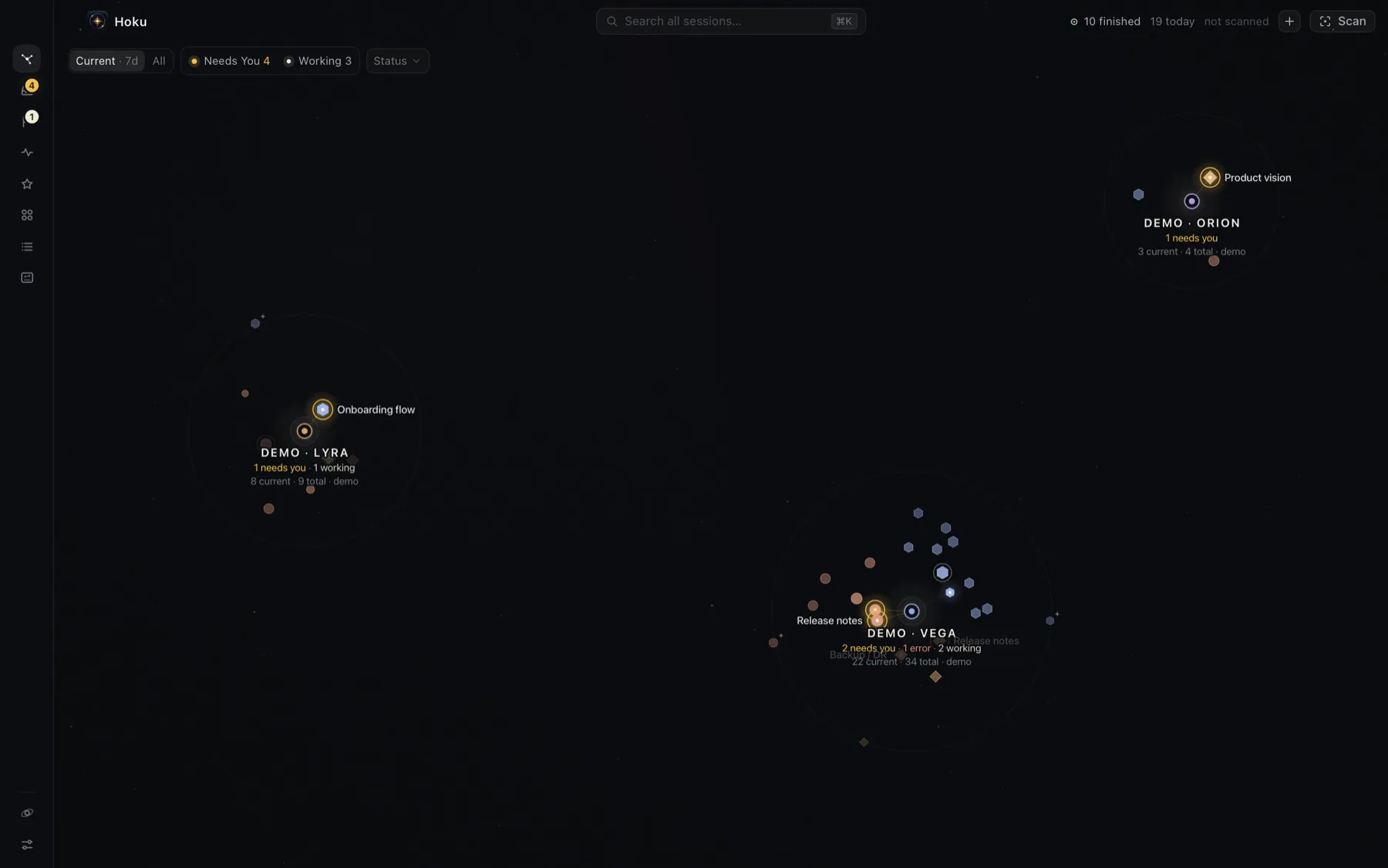
The Galaxy is Hoku’s map. Every project is a star system, and its sessions orbit it. The layout is meant to be learned: a project stays where it is, and nothing jumps around when something changes.
Reading the map
Section titled “Reading the map”Around each project:
- The angle shows the provider. Each provider gets its own sector of the circle: Claude Code sessions are diamonds, Claude (Desktop) sessions are circles, Codex sessions are hexagons. Shape and label always identify the provider, never color alone.
- The distance shows relevance. The closer a session sits to the project’s core, the more it matters now. The rings, from the inside out:
- Live: sessions that need you (closest), then errors, working, ready and idle.
- Recent · 7 days: sessions active inside your recent window. Fresher ones sit closer.
- Older (or Pinned for favorites): shown only in All, or when favorited.
- Halos and rings show state. A warm, steady halo means it needs you. A coral ring is an error. A slow breathing halo means it’s working. A thin ring means ready. Idle, offline and unknown sessions are progressively quieter. See Needs You and live status.
Each project shows a status line (“1 needs you · 1 working”) and “N current · M total”.
Current and All
Section titled “Current and All”The switch at the top left chooses what the map shows. ⌘⇧A toggles it.
- Current · 7d (the default) shows what you’re working on:
- All also shows every older session, quietly, in each project’s outer ring.
In a project, +N older in the top bar reveals that project’s older sessions without switching the whole map to All. Hide older puts them away again.
“Recent” uses the provider’s own last-activity time, not when Hoku found the session. Search always covers every session, whatever the map shows.
Filtering by status
Section titled “Filtering by status”Next to the switch:
- Needs You N and Working N are quick filters. They also tell you at a glance what’s happening right now.
- Status ▾ lets you pick any combination of Needs You, Error, Working, Ready, Idle, Offline and Unknown.
Filtering never moves anything. Sessions that don’t match fade in place, and so do projects with no match. A summary such as “3 projects · 4 sessions need you” appears next to the filter. Clear or Esc removes it.
Moving around
Section titled “Moving around”| To | Do |
|---|---|
| Zoom into a project | Click its core (this also opens its Resume), or press ⌘1–⌘9 for the first nine projects |
| Go back to the whole Galaxy | Click Galaxy in the top bar, press Esc, or ⌘0 |
| Pan | Drag the background, or scroll with two fingers |
| Zoom | Pinch, or hold ⌘ and scroll |
| See a session’s details | Hover it for a summary. Click it to open the inspector. |
| Open a session in its app | Double-click it, or select it and press ↵ |
| Step through a project’s sessions | Tab and ⇧Tab, most recent first |
| Move a session to another project | Drag it onto that project. The choice sticks, even across scans. |
Quiet, hidden and archived projects
Section titled “Quiet, hidden and archived projects”- A project with nothing current stays where it is, very faint, so you keep learning where each project lives. Hover it to bring it back up. Settings → Hide inactive projects takes such projects off the Current map without moving the others.
- An archived project leaves the Galaxy completely. It keeps its place, folder and sessions, and comes back exactly where it was when you restore it. See Archive, delete and forget.
Motion
Section titled “Motion”Settings → Galaxy ambience offers Subtle motion (the default: the background drifts imperceptibly and follows the cursor a little) or Still. Projects and sessions never drift. The runtime animations (breathing, ripples when a state changes) stay on in both modes. If you turn on Reduce motion in macOS, Hoku turns motion off.
How the layout stays stable
Positions come from a deterministic layout seeded by each project’s and session’s ID, so the same data always draws the same map. Sector boundaries only move when a provider’s session count crosses 1, 2, 4, 8, 16… The contributor doc Constellation layout has the details.